1. Quickstart (Your First 60 Seconds)
When the signed HostRecap installer is available, getting started takes under a minute. There are zero accounts required for local recording and zero server configurations:
Step 1: Install & Launch
Run HostRecap-Setup.exe. HostRecap installs cleanly into your local user profile without requiring administrator privileges and docks quietly into your Windows system tray.
Step 2: Background Engine Provisioning
On first launch, HostRecap initializes the native Candle Whisper runtime and provisions your local SLM model (Llama 3.2 3B or Qwen 2.5 1.5B based on your detected RAM).
Step 3: Test Dual-Channel Loopback Audio
- Open the HostRecap Main Hub → click Settings ().
- Speak into your microphone: Observe the Host Mic meter react.
- Play any YouTube video or audio file: Observe the Loopback Audio meter react.
- HostRecap isolates your voice and the computer's sound into two synchronized tracks with 0ms drift. You are ready for your first meeting!
WINDOWS INSTALLATION HELP
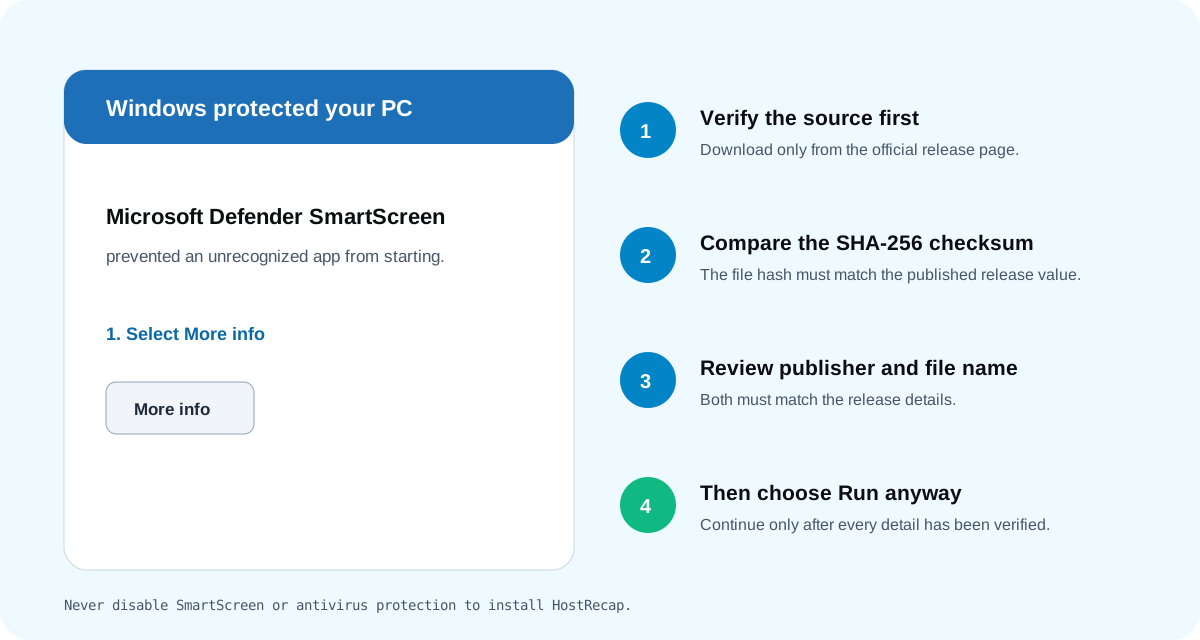
If Windows says "Windows protected your PC"
This is Microsoft Defender SmartScreen checking the reputation of a downloaded app. Do not turn off SmartScreen or antivirus protection.
- Confirm you downloaded the installer from the official HostRecap release page.
- Compare its published SHA-256 checksum with the file you downloaded.
- Select More info in the SmartScreen dialog and check that the publisher and file name match the release details.
- Select Run anyway only after those details match. If they do not match, delete the installer and contact support.
On a work-managed device, an administrator policy may block the installer. Ask your IT administrator instead of changing security settings.
2. Using the Companion Notepad & Shortcuts
During an active meeting, the Companion Notepad (ui/notepad.html) serves as your distraction-free writing canvas:
 < Home         Zoom Active


  Q4 Enterprise Strategy
  [ Today]  [ 2 Attendees]  [ 08:14]

   Sarah raised compliance requirements for HIPAA.
   Action: Push RFC to Notion and update Salesforce.

                  [  Generate notes ]


  ||||   Transcript (Alt+T)   |  Ask anything...
Master Keyboard Shortcuts Table:
| Action |
Shortcut (Windows) |
Shortcut (macOS) |
Description |
| Start / Pause Recording |
Ctrl + Shift + R |
Cmd + Shift + R |
Toggles active loopback recording state |
| Insert Timestamp Bookmark |
Ctrl + Shift + B |
Cmd + Shift + B |
Injects current meeting timecode (e.g. [04:18]) into text |
| Toggle Live Transcript Drawer |
Alt + T (or Ctrl + \) |
Option + T (or Cmd + \) |
Slides up the real-time diarized transcript sheet |
| Collapse to Floating Pill |
Ctrl + Shift + P |
Cmd + Shift + P |
Collapses window into the 138×38 edge widget |
| Generate & Finish Notes |
Ctrl + Enter |
Cmd + Enter |
Concludes meeting audio and triggers SLM note synthesis |
| Insert Bullet Point |
- + Space |
- + Space |
Creates an auto-formatting bullet row |
| Insert Action Task Checkbox |
[] + Space |
[] + Space |
Creates an interactive markdown checklist item |
| Bold Selection |
Ctrl + B |
Cmd + B |
Toggles bold markdown styling |
3. Click-to-Verify Audio Proof
Traditional AI note-takers often hallucinate or misattribute statements. HostRecap solves this with Click-to-Verify Audio Proof:
- Every bullet point, key decision, and action item generated by HostRecap is bound to a precise millisecond timestamp from your local session.
- Instant 10-Second Slice Playback: In the review workspace, clicking any timestamp badge (e.g.,
[14:32]) or pressing .wav file.
- Zero Guesswork: Reviewers can verify quotes with 1 click before escalating decisions or sharing meeting notes with executives.
4. 1-Tap Workspace Integrations Guide
HostRecap connects directly to your workspace tools using standard browser OAuth, with encrypted tokens stored in your native OS Credential Vault.
A. Notion Setup Guide
- In HostRecap, open Settings → Connected Workspaces → Click Connect Notion.
- Your default web browser will open Notion's official authorization page.
-
Important Notion Permission Step: In the Notion prompt, select the workspace and pages you want HostRecap to access:
- To add a database: Navigate to your desired Meeting Notes Database in Notion → Click
- Return to HostRecap: Your workspace displays Connected. You can now click "1-Tap Notion" on any note to append pages with clean markdown blocks.
B. CRM Pipeline Setup (HubSpot, Salesforce, Zoho, Pipedrive)
- Click Connect next to your CRM provider in HostRecap Settings.
- Complete authorization in your browser; HostRecap automatically receives the session token and encrypts it locally.
-
In the Post-Call Review workspace, click "CRM Export":
- Select your target contact, deal, or lead.
-
Choose your desired Synthesis Lens:
- Executive Brief: High-level summary of business needs and decision-makers.
- B2B Deal Note: Commercial terms, timeline, budget, and immediate blockers.
- Evidence Log: Verbatim timestamps and direct quotes for compliance records.
C. Slack Dispatch
- Connect Slack via 1-Click OAuth.
- When exporting notes, select the target channel (e.g.,
#team-updates, #deals) or DM.
- HostRecap formats an executive recap with bullet points and @mentions for assigned action items.
5. Troubleshooting & Frequently Asked Questions (FAQ)
Q: Why is my Bluetooth headset microphone not capturing?
Solution: Windows often configures Bluetooth headphones with two modes: "Stereo Headphones" and "Hands-Free AG Audio".
- Open Windows Sound Settings → More sound settings.
- Ensure your playback output is set to Stereo and recording input is set to your headset microphone.
- In HostRecap Settings, verify that both the Input Device (Microphone) and Loopback Device (Default Render Device) reflect your active hardware.
Q: Where are my master audio recordings and notes stored?
All data is stored strictly on your local disk in standard, unencrypted or encrypted formats:
- Windows:
%APPDATA%\hostrecap\ (Databases and settings) and %LOCALAPPDATA%\hostrecap\recordings\ (Master .wav files).
- macOS:
~/Library/Application Support/hostrecap/.
You can copy, backup, or archive your .wav files at any time.
Q: How do I re-download an interrupted AI model file?
If your network connection dropped while downloading the local SLM model:
- Open HostRecap Settings → Local Engine & Models.
- Click "Verify Models" or "Re-download Model Weights".
- HostRecap validates checksums and resumes the download from the nearest byte chunk.
Q: Can HostRecap work when my computer has no internet connection?
Yes. Once the initial model weights are downloaded, HostRecap operates 100% offline in true airplane mode. Audio loopback capture, Voice Activity Detection, Whisper speech-to-text, and local SLM note generation run entirely on your CPU/GPU with zero network calls.